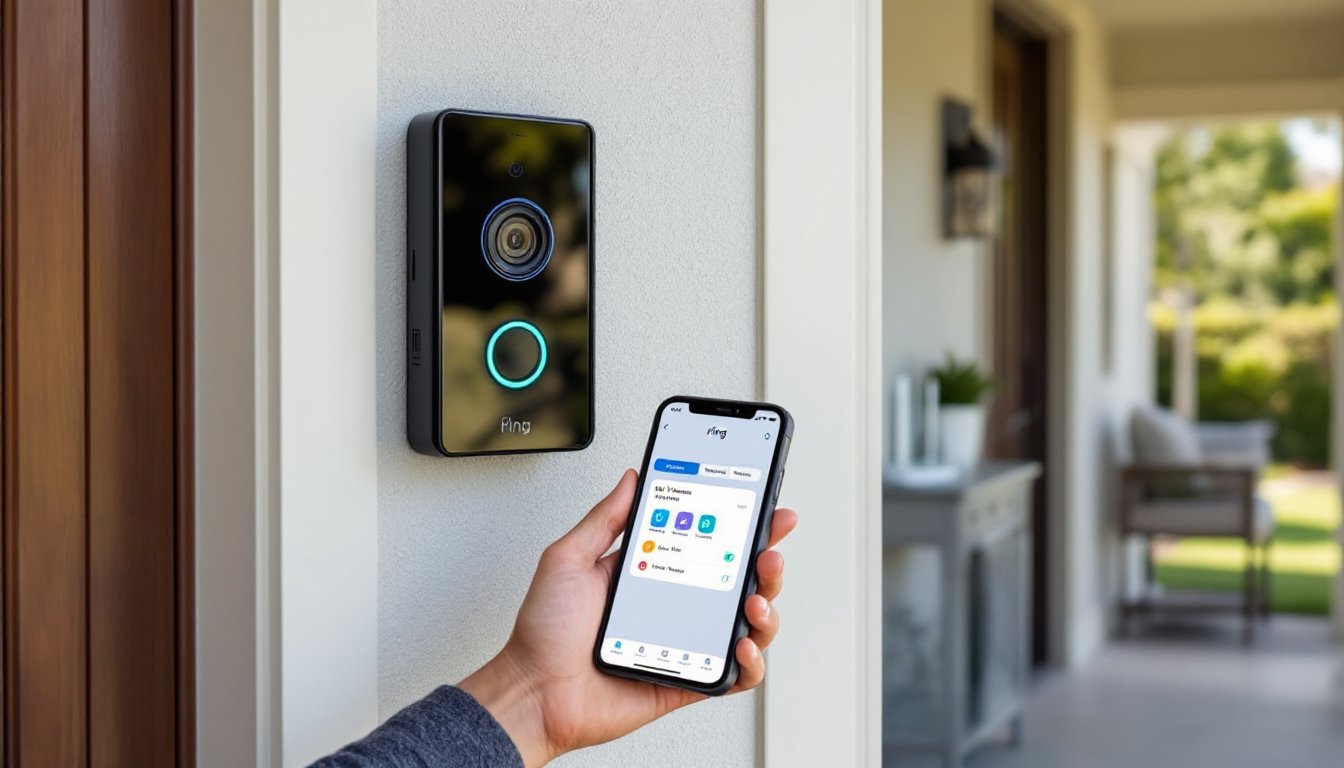
Setting up a Ring doorbell isn’t complicated, but the WiFi connection step trips up plenty of homeowners. Whether the doorbell’s brand new out of the box or someone just upgraded the router, getting it connected reliably takes more than tapping a few buttons. The Ring app handles most of the work, but WiFi signal strength, network compatibility, and a few hidden settings can make or break the connection. This guide walks through the complete process, from prep work to troubleshooting, so the doorbell stays connected and streaming without constant dropouts or failed notifications.
Table of Contents
ToggleKey Takeaways
- Ring doorbell WiFi connection requires a 2.4 GHz network, not 5 GHz—dual-band routers should have the bands split into separate SSIDs to avoid connection failures.
- WiFi passwords with special characters or spaces won’t work; use only alphanumeric credentials, and ensure your password is entered exactly as it appears, including uppercase and lowercase letters.
- Check your router’s signal strength using the Ring app’s Device Health feature—aim for -50 dBm or better, and install a WiFi extender if the doorbell is more than 20-25 feet from the router.
- Common connection issues like weak signal, incorrect passwords, 5 GHz selection, or firewall blocking can be resolved by troubleshooting systematically or performing a hard reset by holding the setup button for 15-20 seconds.
- Optimize Ring doorbell performance by positioning the router within 15-20 feet of the doorbell, scheduling weekly router reboots, and keeping the doorbell’s firmware updated for improved stability.
- When reconnecting to a new WiFi network, use the Device Health option in the Ring app to access Reconnect to WiFi, or perform a hard reset if the doorbell goes offline.
Preparing for Your Ring Doorbell WiFi Connection
Before opening the Ring app, check a few things to avoid wasting time on failed connection attempts.
First, confirm the router supports 2.4 GHz WiFi. Most Ring doorbells (including Video Doorbell, Video Doorbell 2, Video Doorbell 3, and Video Doorbell Pro) connect only to 2.4 GHz networks, not 5 GHz. Dual-band routers often broadcast both frequencies under the same network name (SSID), which confuses the setup process. Log into the router’s admin panel and either split the bands into separate SSIDs (e.g., “Home_2.4” and “Home_5”) or temporarily disable the 5 GHz band during setup.
Next, verify the WiFi password. Ring doorbells don’t support networks with special characters like apostrophes or spaces in the password. If the current password includes those, change it temporarily in the router settings.
Charge the doorbell’s battery fully before starting. A low battery causes connection failures that look like WiFi issues. For hardwired models (like the Ring Video Doorbell Pro), confirm the transformer supplies 16-24 volts AC and at least 10 VA. Insufficient power causes intermittent disconnections.
Finally, move the smartphone close to the doorbell during setup, within 10-15 feet. Bluetooth plays a role in the initial pairing, and distance causes handoff problems between the phone, doorbell, and router.
Step-by-Step: Connecting Your Ring Doorbell to WiFi
Initial Setup Through the Ring App
Download the Ring app (available for iOS and Android) and create an account or log in. The app guides users through device-specific setup, but the core steps remain consistent across models.
- Tap the menu icon (three horizontal lines) in the top-left corner.
- Select Set Up a Device, then choose Doorbells.
- Pick the specific Ring doorbell model from the list. The app displays a diagram, confirm it matches the physical unit.
- Press and release the setup button on the doorbell. Location varies by model: on the side for Video Doorbell and Video Doorbell 2, or on the faceplate after removing the security screw for Video Doorbell 3 and Pro models. The light on the front should spin or flash to indicate setup mode.
- Wait for the app to detect the doorbell via Bluetooth. This takes 10-30 seconds. If it times out, press the setup button again and move the phone closer.
Once the app recognizes the doorbell, it prompts for a device name and location (Front Door, Back Porch, etc.). This label appears in notifications and live view.
Entering Your WiFi Credentials
After naming the device, the app scans for available WiFi networks. The list shows only 2.4 GHz networks, if the home network doesn’t appear, the router’s likely broadcasting only 5 GHz or the signal’s too weak at the doorbell’s location.
- Tap the correct network name from the list. Hidden networks won’t appear: unhide the SSID in the router settings temporarily if needed.
- Enter the WiFi password exactly as it appears, including uppercase, lowercase, and numbers. The app doesn’t show the password as typed, so double-check before tapping Continue.
- The doorbell attempts to connect. A progress bar appears, and the process takes 30-90 seconds. The light on the doorbell flashes during this stage. Many homeowners find that initial device pairing requires patience, especially in homes with multiple access points.
If the connection succeeds, the app displays a confirmation screen and runs a brief test to verify video streaming. If it fails, an error message explains the problem, usually weak signal, incorrect password, or network incompatibility. Address those issues before retrying.
Troubleshooting Common WiFi Connection Issues
When the doorbell won’t connect, start with the most common culprits.
Wrong WiFi Password: The doorbell rejects incorrect credentials immediately. Re-enter the password, checking for typos. If the router password includes a special character, change it to alphanumeric only.
5 GHz Network Selected: The app sometimes lists 5 GHz networks on dual-band routers. Ring doorbells can’t connect to 5 GHz. Switch to the 2.4 GHz band, or split the network SSIDs in the router settings so only 2.4 GHz appears during setup.
Weak Signal Strength: If the doorbell’s mounted more than 20-25 feet from the router, or separated by multiple walls, brick, or metal siding, the signal’s too weak. Use the app’s Device Health feature (under the doorbell settings) to check signal strength. Anything below -60 dBm (displayed as “RSSI”) causes frequent disconnections. Install a WiFi extender or mesh router node closer to the doorbell to boost coverage. The device typically needs at least 2 Mbps upload speed for reliable video streaming.
Router Firewall or Security Settings: Some routers block new devices by default, especially if MAC address filtering or access control lists are enabled. Log into the router’s admin panel and add the doorbell’s MAC address to the allowed devices list. The MAC address appears in the Ring app under Device Health > MAC Address.
Outdated Router Firmware: Older routers running outdated firmware sometimes reject IoT devices. Check the router manufacturer’s website for firmware updates and install them before retrying the connection.
VPN or Proxy Interference: If the home network runs a VPN or proxy at the router level, disable it temporarily during setup. Ring doorbells communicate with Amazon servers, and some VPN configurations block that traffic.
If none of these fixes work, perform a hard reset on the doorbell. Press and hold the setup button for 15-20 seconds until the light flashes rapidly, then release. This erases all settings. Restart the setup process from scratch, ensuring the router’s 2.4 GHz band is active and the phone’s close to the doorbell.
Reconnecting Ring Doorbell to a New WiFi Network
Switching routers or changing the network name and password requires reconnecting the doorbell.
- Open the Ring app and tap the doorbell in the device list.
- Select Device Health, then scroll down and tap Reconnect to WiFi or Change WiFi Network.
- Press the setup button on the doorbell to enter setup mode. The light should spin or flash.
- The app scans for available networks. Select the new network and enter the password.
- Wait for the doorbell to connect. This process mirrors the initial setup.
If the Reconnect to WiFi option doesn’t appear, the doorbell’s offline. Perform a hard reset by holding the setup button for 15-20 seconds, then set it up as a new device through the app.
For homeowners upgrading to a mesh WiFi system, ensure the system broadcasts a 2.4 GHz band. Some mesh routers combine both bands under one SSID and automatically steer devices to 5 GHz, which breaks the Ring connection. Access the mesh router’s settings and either create a separate 2.4 GHz network or disable band steering temporarily. Detailed installation steps for Ring devices emphasize the importance of matching network frequencies during the reconnection process.
After reconnecting, test the doorbell by pressing the button and checking if the phone receives a notification. Open Live View in the app to confirm video streaming works without buffering.
Optimizing Your Ring Doorbell’s WiFi Performance
A stable connection prevents missed notifications and video lag. Start by positioning the router or a WiFi extender within 15-20 feet of the doorbell with minimal obstructions. Walls, metal siding, and large appliances degrade signal strength.
Use the Ring app’s Device Health screen to monitor performance. Check the RSSI value, aim for -50 dBm or better. Anything worse than -70 dBm causes frequent dropouts. If the signal’s weak, add a WiFi extender or upgrade to a mesh system with nodes placed strategically around the home.
Adjust the doorbell’s Motion Settings to reduce unnecessary uploads. Lowering motion sensitivity or creating motion zones limits the number of events the doorbell records, reducing bandwidth usage and extending battery life. Disable Rich Notifications (snapshot previews) if the network struggles with upload speed.
For hardwired Ring doorbells, confirm the transformer supplies adequate voltage. Use a multimeter to measure output, it should read 16-24V AC. Low voltage causes the doorbell to reboot frequently, which looks like WiFi problems but isn’t.
Schedule automatic router reboots once a week. Many routers accumulate connection errors over time, and a reboot clears them. Most modern routers support scheduled reboots in their admin panels.
Finally, update the doorbell’s firmware regularly. The Ring app installs updates automatically, but check manually by going to Device Health > Device Details > Firmware. Firmware updates often include WiFi performance improvements. Testing newer Ring models confirms that consistent firmware updates improve connection stability in challenging WiFi environments.
If the doorbell’s still unreliable after optimization, consider the router’s age. Routers older than 5-6 years often lack the processing power to handle multiple IoT devices. Upgrading to a modern dual-band or mesh router with WiFi 5 (802.11ac) or WiFi 6 (802.11ax) provides better range, stability, and device capacity.